Introduction
This code implements an Animated Fade-In Overlay Login Form using HTML, CSS, and JavaScript.
It enhances user experience through smooth fade-in and slide-in animations, creating a modern and interactive login interface.
The design is fully responsive and features a glassmorphism-inspired layout with floating labels, glowing effects, and dynamic transitions.
This type of login form is perfect for modern websites, web applications, and dashboards that want to display a clean, elegant, and animated login popup.
Code Explanation
1. HTML Structure
The HTML code defines the structure and layout of the login form and its overlay:
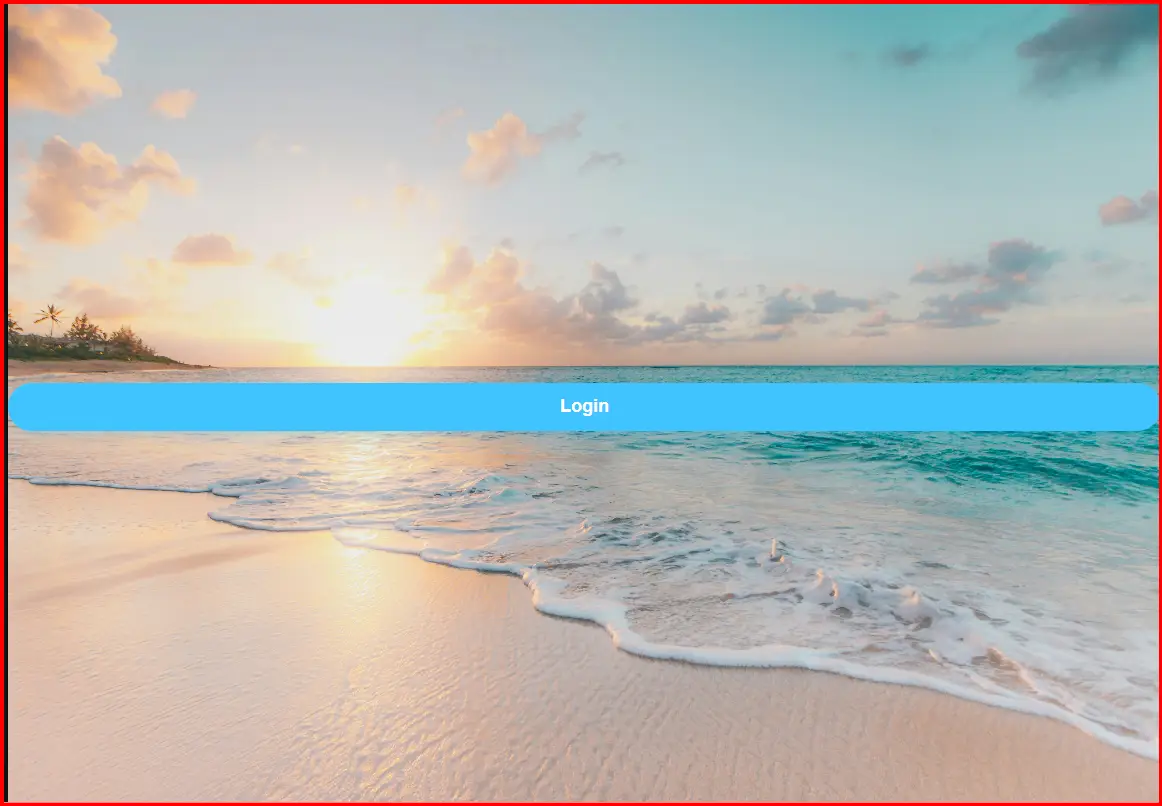
- A Login Button is placed on the main page to open the overlay form.
- The
<div class="overlay">serves as a full-screen background layer that appears when the login form is activated. - Inside the overlay, the
<div class="login-container">holds the form content. - Two input fields (
UsernameandPassword) are created using<input>and<label>pairs for floating label animation. - A Login Button triggers the login validation, and an Error Message displays when fields are incomplete.
- A Close Button (×) allows users to close the overlay at any time.
2. CSS Styling
The CSS section provides styling, layout, and animations for the form.
a. Background and Layout
- The body uses a full-screen ocean image from Unsplash as the background.
- The overlay uses
rgba(0, 0, 0, 0.4)with a blur filter to create a semi-transparent, blurred glass look. - The overlay is initially hidden (
opacity: 0; visibility: hidden;), but it smoothly fades in when activated.
b. Animated Overlay and Container
- The
.overlay.activeclass makes the overlay visible with a fade-in animation using opacity and transition. - The login box (
.login-container) slides upward and becomes visible withtransformandopacitytransitions, giving a smooth pop-up effect.
c. Glassmorphism Design
- The login container uses a transparent white background with
rgba(255, 255, 255, 0.15)and a soft border, creating a frosted-glass effect. - Box shadows and backdrop blur give depth to the form, making it appear to float over the page.
d. Input Fields and Floating Labels
- Each input field uses light transparency and glow effects.
- Labels automatically move above the input when it is focused or filled, maintaining readability and elegance.
e. Buttons and Effects
- The Login Button and Show Login Button use a bright blue theme (
#40c4ff), rounded edges, and glow on hover. - The Close Button (×) changes color when hovered, enhancing usability.
f. Error Message
- Displays in red color (
#ff5252) when inputs are missing, providing clear feedback to the user.
3. JavaScript Functionality
The JavaScript adds interactivity and logical control to the form.
a. Overlay Controls
- The
showLoginForm()function adds theactiveclass to the overlay, making it visible. - The
hideLoginForm()function removes the class, hiding the overlay again.
b. Login Validation
- The
handleLogin()function checks if the username and password fields are empty.- If empty → shows an error message.
- If filled → hides the error message, shows a success alert, and closes the overlay.
c. Keyboard Shortcut
- The Enter key is bound to the login function using a
keydownevent listener, allowing fast login without clicking the button manually.
Main Features
- Fade-In Overlay Animation:
The login popup smoothly fades in and slides up for a polished user experience. - Glassmorphism Design:
Uses transparency, blur, and light colors for a soft, modern visual effect. - Floating Labels:
Input labels rise when active or filled, providing a neat and minimal layout. - Responsive Center Layout:
The form remains centered and properly scaled across all device sizes. - Close Button Functionality:
Allows users to close the overlay instantly with a simple click. - Keyboard Interaction:
The Enter key automatically triggers login, improving accessibility. - Error Feedback:
Displays a red error message when credentials are missing. - Interactive Buttons:
Hover effects and color transitions make the interface dynamic and responsive. - Customizable Background:
The background image can easily be replaced with any theme or brand style. - Reusable and Extendable Code:
The structure is simple enough to integrate with real authentication systems or databases.
Best Way to Use This Code
- For Websites or Web Apps:
Integrate this login overlay as a modal for admin dashboards, member areas, or user authentication. - Add Real Authentication:
Replace the alert insidehandleLogin()with a real validation process using PHP, Node.js, Firebase, or an API. - Customize Design:
- Change color schemes to match your brand.
- Adjust blur intensity for visual clarity.
- Replace the Unsplash background with a relevant image.
- Enhance Usability:
Add options like “Remember Me”, “Forgot Password”, or “Create Account” to make it a complete login system. - Improve Accessibility:
Include ARIA roles and input descriptions for better compatibility with assistive tools. - Optimize for Performance:
Use compressed background images to reduce load time.
Conclusion
The Animated Fade-In Overlay Login Form is a modern and interactive login interface that combines animation, usability, and glass design aesthetics.
It enhances the user experience with smooth transitions, floating labels, and responsive adaptability.
This login form is ideal for web developers looking to implement a professional, clean, and engaging login experience.
With minimal modifications and real backend integration, it can serve as a polished front-end component for any website or web-based application.
<!DOCTYPE html>
<html lang="en">
<head>
<meta charset="UTF-8">
<meta name="viewport" content="width=device-width, initial-scale=1.0">
<title>Animated Fade-In Overlay Login Form</title>
<style>
* {
margin: 0;
padding: 0;
box-sizing: border-box;
font-family: Arial, sans-serif;
}
body {
min-height: 100vh;
display: flex;
justify-content: center;
align-items: center;
background: url('https://images.unsplash.com/photo-1507525428034-b723cf961d3e') no-repeat center center/cover;
}
.login-button {
padding: 12px 24px;
background: #40c4ff;
border: none;
border-radius: 25px;
color: #fff;
font-size: 16px;
font-weight: bold;
cursor: pointer;
transition: all 0.3s ease;
box-shadow: 0 4px 15px rgba(64, 196, 255, 0.3);
}
.login-button:hover {
background: #0288d1;
box-shadow: 0 6px 20px rgba(64, 196, 255, 0.5);
}
.overlay {
position: fixed;
top: 0;
left: 0;
width: 100%;
height: 100%;
background: rgba(0, 0, 0, 0.4);
backdrop-filter: blur(10px);
display: flex;
justify-content: center;
align-items: center;
z-index: 1000;
opacity: 0;
visibility: hidden;
transition: opacity 0.5s ease, visibility 0.5s ease;
}
.overlay.active {
opacity: 1;
visibility: visible;
}
.login-container {
background: rgba(255, 255, 255, 0.15);
padding: 40px;
border-radius: 15px;
box-shadow: 0 8px 32px rgba(0, 0, 0, 0.1);
backdrop-filter: blur(10px);
border: 1px solid rgba(255, 255, 255, 0.2);
width: 100%;
max-width: 400px;
text-align: center;
transform: translateY(20px);
opacity: 0;
transition: transform 0.5s ease, opacity 0.5s ease;
}
.overlay.active .login-container {
transform: translateY(0);
opacity: 1;
}
.login-container h2 {
color: #fff;
margin-bottom: 30px;
font-size: 24px;
text-shadow: 0 2px 4px rgba(0, 0, 0, 0.1);
}
.input-group {
position: relative;
margin-bottom: 30px;
}
.input-group input {
width: 100%;
padding: 12px 15px;
background: rgba(255, 255, 255, 0.1);
border: 1px solid rgba(255, 255, 255, 0.3);
border-radius: 5px;
color: #fff;
font-size: 16px;
outline: none;
transition: all 0.3s ease;
}
.input-group input:focus {
border-color: #40c4ff;
box-shadow: 0 0 10px rgba(64, 196, 255, 0.5);
background: rgba(255, 255, 255, 0.2);
}
.input-group label {
position: absolute;
top: 50%;
left: 15px;
transform: translateY(-50%);
color: rgba(255, 255, 255, 0.8);
pointer-events: none;
transition: all 0.3s ease;
}
.input-group input:focus + label,
.input-group input:not(:placeholder-shown) + label {
top: -10px;
font-size: 12px;
color: #40c4ff;
background: transparent;
}
button {
width: 100%;
padding: 12px;
background: #40c4ff;
border: none;
border-radius: 25px;
color: #fff;
font-size: 16px;
font-weight: bold;
cursor: pointer;
transition: all 0.3s ease;
box-shadow: 0 4px 15px rgba(64, 196, 255, 0.3);
}
button:hover {
background: #0288d1;
box-shadow: 0 6px 20px rgba(64, 196, 255, 0.5);
}
.error-message {
color: #ff5252;
margin-top: 10px;
display: none;
text-shadow: 0 1px 2px rgba(0, 0, 0, 0.1);
}
.close-button {
position: absolute;
top: 20px;
right: 20px;
background: none;
border: none;
color: #fff;
font-size: 24px;
cursor: pointer;
transition: color 0.3s ease;
}
.close-button:hover {
color: #40c4ff;
}
</style>
</head>
<body>
<button class="login-button" onclick="showLoginForm()">Login</button>
<div class="overlay" id="overlay">
<button class="close-button" onclick="hideLoginForm()">×</button>
<div class="login-container">
<h2>Login</h2>
<div class="input-group">
<input type="text" id="username" placeholder=" " required>
<label for="username">Username</label>
</div>
<div class="input-group">
<input type="password" id="password" placeholder=" " required>
<label for="password">Password</label>
</div>
<button onclick="handleLogin()">Login</button>
<div class="error-message" id="error-message">Invalid username or password</div>
</div>
</div>
<script>
function showLoginForm() {
document.getElementById('overlay').classList.add('active');
}
function hideLoginForm() {
document.getElementById('overlay').classList.remove('active');
}
function handleLogin() {
const username = document.getElementById('username').value;
const password = document.getElementById('password').value;
const errorMessage = document.getElementById('error-message');
if (username === '' || password === '') {
errorMessage.style.display = 'block';
} else {
errorMessage.style.display = 'none';
// Simulate login (replace with actual authentication logic)
alert('Login successful! Username: ' + username);
hideLoginForm();
}
}
// Allow login with Enter key
document.addEventListener('keydown', (event) => {
if (event.key === 'Enter' && document.getElementById('overlay').classList.contains('active')) {
handleLogin();
}
});
</script>
</body>
</html>
HTML Login & Registration Forms – Parking / Management Systems & Modern UI Designs (Related to HTML Forms)
Login & Register Form for Park Management System with Dropdown:
This type of HTML form combines login and registration functionality for parking or park management systems. It often uses dropdown menus to switch between login and sign-up options in a single interface, making it more user-friendly and compact for web applications.
Read more: https://macronepal.com/blog/login-and-register-form-for-park-managmet-system-with-dropdown/
Dropdown Login Form for Parking System:
A dropdown login form allows users to select options like user type (admin/user) before logging in. This improves system control and is commonly used in parking management systems to separate different access levels.
Read more: https://macronepal.com/blog/drop-down-login-form-for-parking-system/
Dropdown Login Form for Park Management System:
Similar to parking systems, this login design uses dropdown selection to manage different roles such as staff, admin, or users. It simplifies authentication while improving system organization.
Read more: https://macronepal.com/blog/drop-down-login-form-for-park-managment-system/
Simple Login Form for Park Management System:
A basic login form built using HTML that includes fields like username and password. It is used for secure access to park management dashboards and is easy to design and implement.
Read more: https://macronepal.com/blog/simple-login-form-code-for-park-managment-system/
AI Style Glow Fullscreen Overlay Login Form:
This modern login form uses glowing UI effects and full-screen overlays to create an advanced and attractive design. It enhances user experience using CSS animations and visual effects.
Read more: https://macronepal.com/blog/ai-style-glow-fullscreen-overlay-login-form/
Glassmorphism Login Form:
Glassmorphism is a modern UI design style that uses blur, transparency, and frosted glass effects. It makes login forms look stylish and professional while maintaining readability.
Read more: https://macronepal.com/blog/what-is-glassmorphism-login-form/
Emoji Background Overlay Full Screen Login Form:
This login design uses emoji-based backgrounds with full-screen overlay effects to create a fun and engaging user interface while keeping login functionality simple.
Read more: https://macronepal.com/blog/emoji-background-overlay-full-screen-login-form/
Minimal Center Alignment Fullscreen Overlay Login Form:
A clean and minimal login form centered on the screen. It focuses on simplicity, proper alignment, and distraction-free user experience.
Read more: https://macronepal.com/blog/minimal-center-alignment-fullscreen-overlay-login-form/
Image Blur Focus Fullscreen Overlay Login Form:
This login design uses blurred background images with a focused login box in the center, improving visual depth and user attention on the form.
Read more: https://macronepal.com/blog/image-blur-focus-fullscreen-overlay-login-form/
Geometric Pattern Fullscreen Overlay Login Form:
A creative login form design that uses geometric patterns as backgrounds with overlay effects, giving a modern and structured visual appearance.
Read more: https://macronepal.com/blog/geometric-pattern-fullscreen-overlay-login-form/